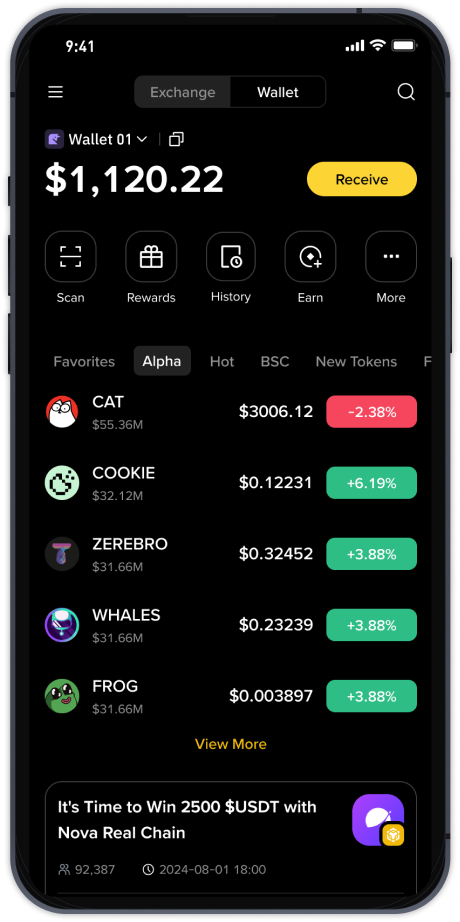
How to Withdraw Crypto from Binance App on iPhone: A Step-by-Step Guide

For cryptocurrency investors using an iPhone, accessing Binance through the official iOS app is a common practice. However, the process of withdrawing funds—whether it is fiat currency or digital assets—can sometimes raise questions, especially for new users. This guide provides a clear, step-by-step explanation of how to withdraw from the Binance app on your iPhone.
Before initiating any withdrawal, ensure you have downloaded the genuine Binance app from the Apple App Store. Illegitimate or third-party clones can lead to security risks. Once logged into your verified account, you will need to navigate to the wallet section, which is typically located at the bottom right of the home screen, labeled "Wallet."
The next step is to select your withdrawal type. You have two primary options: withdraw fiat currency (such as USD, EUR, or GBP) or withdraw cryptocurrency (such as Bitcoin or Ethereum). For fiat withdrawals, you must first sell your crypto for the desired currency within the app. After selling, tap on "Fiat and Spot" under your wallet, then choose "Withdraw." The app will prompt you to select your bank account or payment method. Binance supports multiple fiat channels, including bank transfers and third-party payment platforms. Depending on your region, the processing time for fiat withdrawals can range from a few minutes to several business days.
For cryptocurrency withdrawals, the process is different. In the "Wallet" tab, tap "Crypto" and then select the digital asset you wish to transfer. Tap the "Withdraw" button. You will be asked to enter the recipient's wallet address. Extreme caution is required here: cryptocurrency transactions are irreversible. Copying the wrong address or sending to an unsupported network can result in permanent loss of funds. After entering the address, select the correct network (e.g., ERC20, BEP2, or BEP20). Using the wrong network may also lead to a failed transaction or lost coins. The system will display a network fee, which varies based on blockchain congestion. After confirming the amount, you must complete two-factor authentication (2FA), usually via the Google Authenticator app or SMS code, to finalize the request.
It is worth noting that Binance applies withdrawal limits based on your account verification level. A standard unverified account has very low daily limits. To increase your withdrawal capacity, you must complete full Identity Verification (KYC) by uploading your ID document and passing a facial recognition scan through the iPhone app. Furthermore, always double-check the minimum withdrawal amount. Each cryptocurrency has a specific minimum, and attempting to withdraw less than this threshold will result in an error.
Security is paramount during this process. Never share your 2FA codes or private keys with anyone. Also, if you are withdrawing to an exchange or wallet for the first time, consider sending a small test transaction first. This small fee is worth the peace of mind that the address and network are correct. If you encounter an issue where the withdrawal is stuck or pending, check the blockchain explorer link provided by Binance. If the transaction remains unconfirmed for an extended period, you may need to contact Binance Support through the in-app help center.
In summary, withdrawing from the Binance app on an iPhone is straightforward once you understand the interface and security requirements. Whether moving your crypto to a cold storage wallet or converting profits to your bank account, always prioritize network selection, correct addresses, and 2FA authentication. By following these steps carefully, you can manage your funds safely from the palm of your hand.